How to check the SHA-256 of the Ace download on Windows
Open Windows PowerShell, run Get-FileHash on the installer you downloaded, and compare the 64-character result with the SHA-256 listed for that build on Ace’s public release record at tryacee.com/changelog. Matching values mean you have exactly the file Ace released. Get-FileHash uses SHA-256 unless you ask for another algorithm.

Free Play: 2,000 credits, no card. Ace by Black Label.

What the fingerprint proves
A SHA-256 value is a fingerprint of a file’s exact bytes. Change a single byte, through a damaged download or a tampered copy, and the value changes completely. So when your file’s value matches the one Ace publishes for a build, you have that build, byte for byte.
The check is only as good as the place you read the published value. Read it on Ace’s own release record, never on a page that offered you the file.
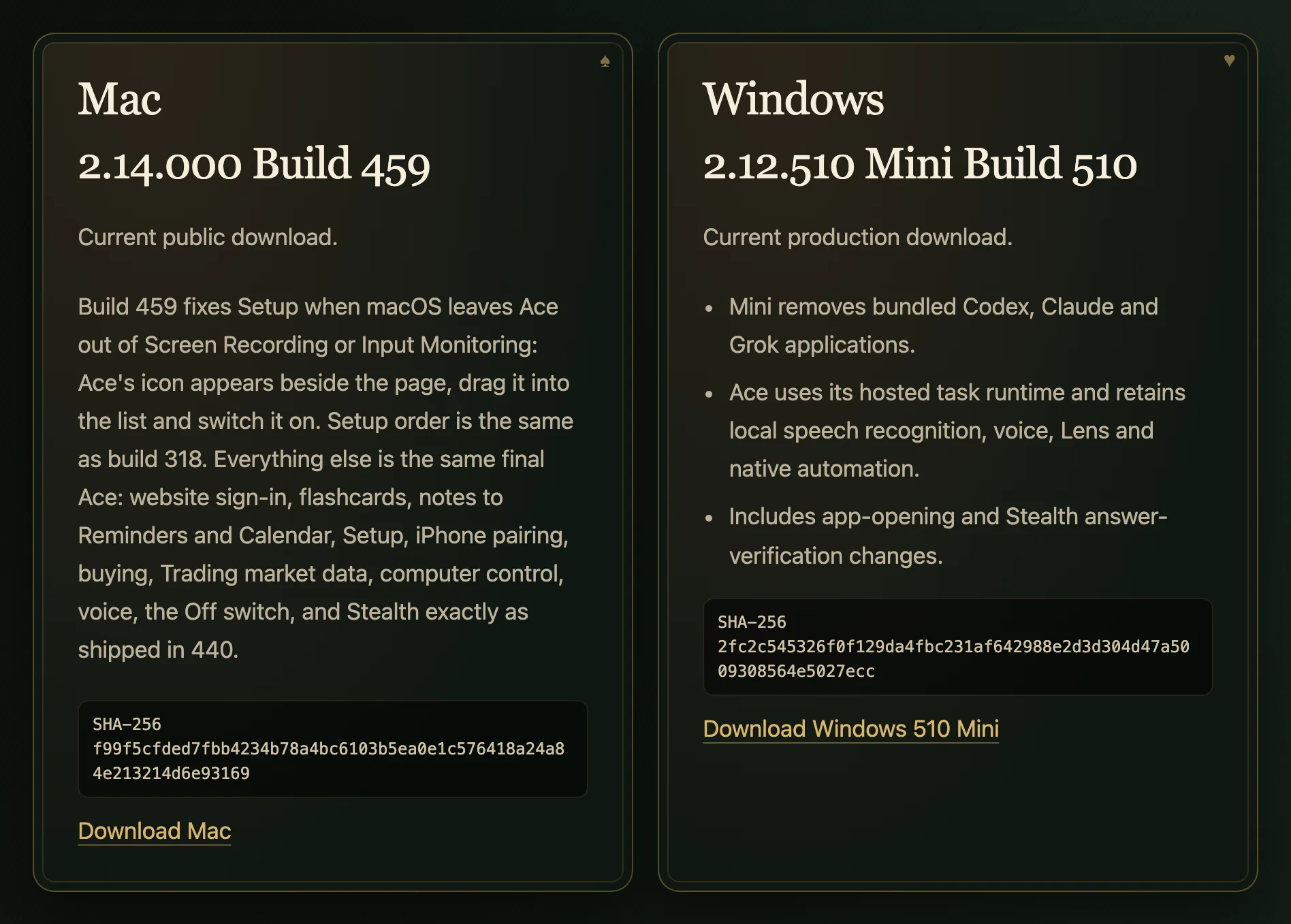
Check it with PowerShell
- Open Start, type Windows PowerShell and select it.
- Type Get-FileHash, a space, and the full path of the installer in quotes, for example Get-FileHash "C:\Users\you\Downloads\<installer file>", then press Enter.
- Read the Hash value in the result. Get-FileHash uses SHA-256 by default.
- Compare it with the SHA-256 listed for the same build on the release record.
To let PowerShell do the comparison, store the published value and test it: $published = "paste the value here", then (Get-FileHash "path to the installer").Hash -eq $published. PowerShell prints True when they match. The -eq operator ignores upper and lower case, so the capital letters Get-FileHash prints still match the lowercase value on the record.
Or with certutil in Command Prompt
If you prefer Command Prompt, run certutil -hashfile followed by the path in quotes and SHA256, for example certutil -hashfile "<path to the installer>" SHA256. Name the algorithm every time: certutil supports several hash algorithms, including MD5, SHA1 and SHA512, and only the SHA-256 value is comparable with Ace’s record.
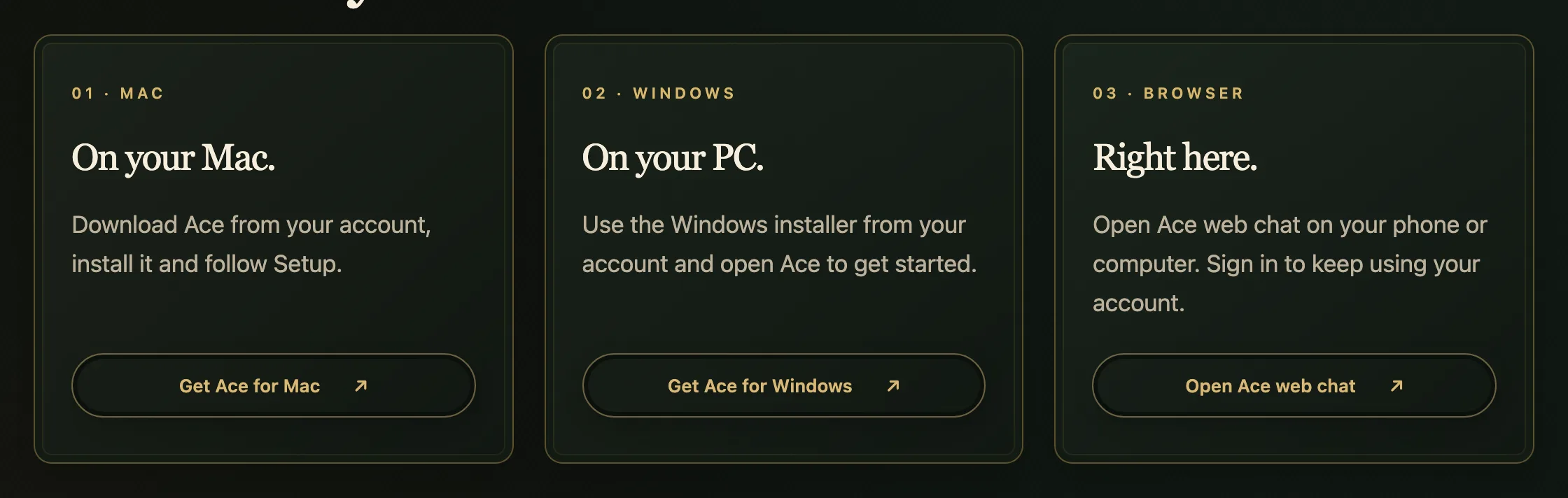
The public release record
Open the Ace release record and find Windows. Check the build number against the installer you downloaded and open the SHA-256 details for that build. Compare all 64 characters with your result.
If the release record does not list the exact build, get a fresh copy from the official Ace download for Windows. Verify the new file before opening it.
If the values don’t match
- Don’t run the file.
- Make sure you compared the right row: the Windows build, not the Mac one, and the build number you downloaded.
- Delete the file and download it again from your Ace account; an interrupted download produces a different value.
- If a fresh download from your account still doesn’t match the record, write to hello@tryacee.com with the value you got.
Updates
For a manual update, use the Windows entry in the Ace changelog to read the notes and verify the installer for that build. Updates use your Ace account and the device information needed to deliver them. If you install a newer build by hand, download it from your account and check its fingerprint the same way.
Fingerprints, signatures and SmartScreen
Three checks answer three different questions. The fingerprint tells you the file matches what was published. A code signature tells Windows who published it, and Ace’s security page says its Windows download uses the platform’s signing and installation checks. SmartScreen adds a reputation check that builds up as more people download a file, which is why a genuine new build can still meet a warning.
More from Ace
The full overview of Ace for Windows is on tryacee.com/windows-ai-assistant.
Also asked
Does upper or lower case matter when comparing SHA-256 values?
No. The letters a to f mean the same in either case, and PowerShell’s -eq ignores case, so Get-FileHash’s capitals match the record’s lowercase.
Is a matching SHA-256 the same as a digital signature?
No. A match proves the file is the published build; a signature identifies who published it. Ace publishes the fingerprint, and its security page says the Windows download uses Windows’ signing and installation checks.
Where can I see what changed in a Windows build?
Open the Windows entry at tryacee.com/changelog to see what changed and find the SHA-256 for the published installer.
Can I check the file without PowerShell?
Yes. In Command Prompt, certutil -hashfile with the file path and SHA256 gives the same value.
What does a matching SHA-256 value prove about the installer?
It proves you have that build, byte for byte. A SHA-256 value is a fingerprint of a file’s exact bytes: change a single byte, through a damaged download or a tampered copy, and the value changes completely. So when your file’s value matches the one Ace publishes for a build, you have exactly the file Ace released.
What should I do if the SHA-256 values don’t match?
Don’t run the file. Make sure you compared the right row: the Windows build, not the Mac one, and the build number you downloaded. Then delete the file and download it again from your Ace account, because an interrupted download produces a different value. If a fresh download still doesn’t match the record, write to hello@tryacee.com with the value you got.
How do I make PowerShell compare the two SHA-256 values for me?
Store the published value, then test it. Type $published = "paste the value here", then (Get-FileHash "path to the installer").Hash -eq $published. PowerShell prints True when they match. Take the published value from the SHA-256 listed for the same build on the release record.
Do I have to tell Get-FileHash to use SHA-256?
No. Get-FileHash uses SHA-256 unless you ask for another algorithm, so running it on the full path of the installer gives the value you need. Read the Hash value in the result, then compare the 64-character result with the SHA-256 listed for that build on Ace’s public release record at tryacee.com/changelog.
Can I compare an MD5 or SHA1 value with Ace’s release record?
No. Only the SHA-256 value is comparable with Ace’s record. That is why you name the algorithm every time you use certutil, which supports several hash algorithms, including MD5, SHA1 and SHA512. Run certutil -hashfile followed by the path in quotes and SHA256 to get the value the record lists.
Is a SHA-256 shown on another download site good enough?
No. The check is only as good as the place you read the published value. Read it on Ace’s own release record, never on a page that offered you the file. Download Ace only from your own account, then compare your file with the SHA-256 listed for that build at tryacee.com/changelog.
Which SHA-256 do I compare against after a newer build ships?
The value next to the build you actually downloaded, read on the live record at tryacee.com/changelog. New builds appear on the release record with their notes and fingerprints. If you install a newer build by hand, download it from your account and check its fingerprint the same way.
More questions
Deal yourself in.
More about Ace
Sources
- Get-FileHash (Microsoft.PowerShell.Utility) - PowerShell | Microsoft Learn, Microsoft Learn. Checked November 14, 2026.
- about_Comparison_Operators - PowerShell | Microsoft Learn, Microsoft Learn. Checked November 14, 2026.
- certutil | Microsoft Learn, Microsoft Learn. Checked November 14, 2026.