Installing the Ace AI app on Windows
Create a free Ace account with Google or an email link, download the Windows installer from your account, check its SHA-256 against Ace’s release record, run it, approve the same account in Setup and choose your permissions. Then hold Ctrl + Shift and ask your first question. The steps are the same on Windows 11 and Windows 10.

Free Play: 2,000 credits, no card. Ace by Black Label.

Before you start
- A PC running Windows 11 or Windows 10, connected to the internet.
- Open Settings → System → About and check System type. Compare it with Ace’s Windows installer requirements before downloading.
- The Google account or email address you want to sign in with.
- A microphone if you want to talk to Ace; typing works without one.
- If the PC belongs to your employer or school, its approval to install new apps.
Install step by step
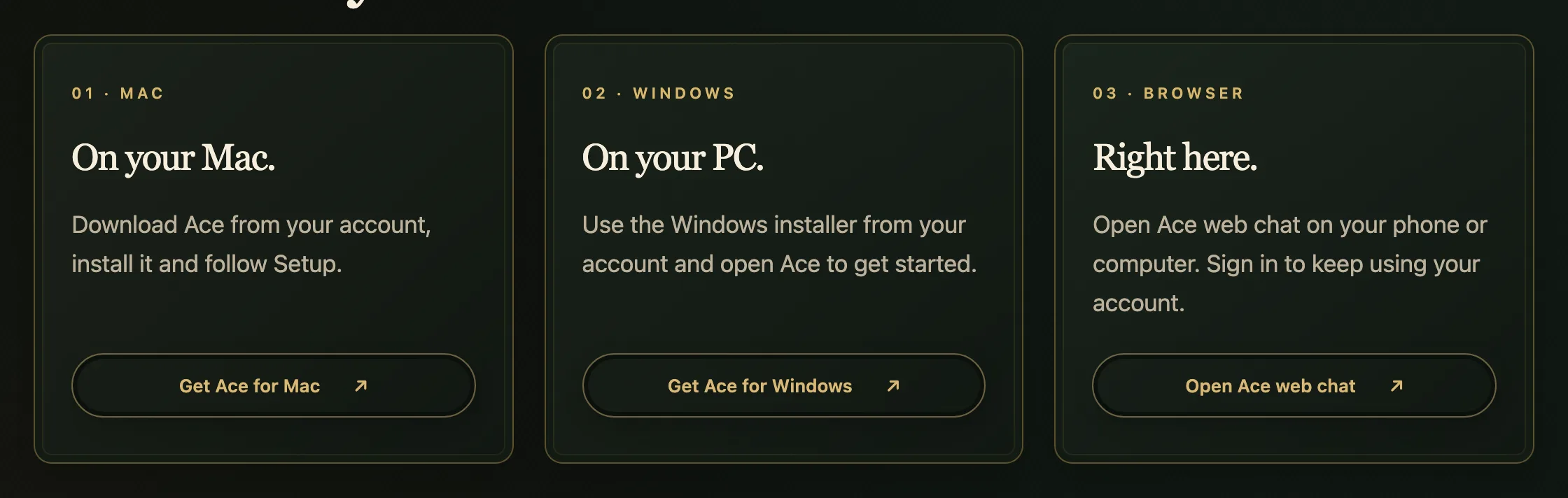
- Open the Ace Windows download and choose Continue with Google, or enter your email address and open the sign-in link Ace sends. The link expires after 15 minutes; if it hasn’t arrived, check your spam folder.
- In your account, choose the Windows download and save the installer.
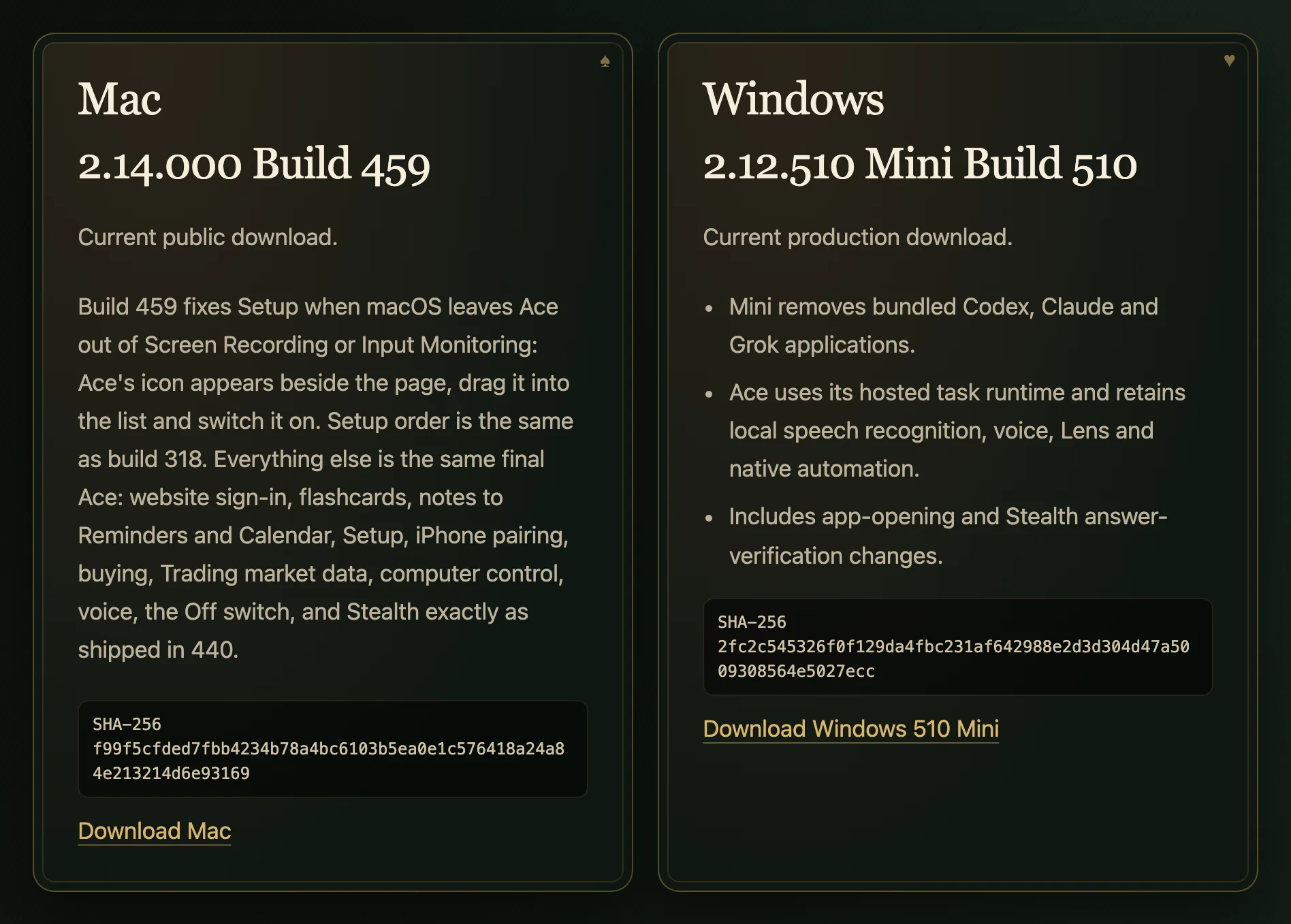
- Optional but worth a minute: check the file’s SHA-256 against the value listed for that build on the public release record at tryacee.com/changelog.
- Open the installer and follow its steps.
- When Ace’s Setup opens, approve the same Ace account you signed in with on the website.
- Choose permissions. Windows shows its own prompt for each one: microphone, screen, files and app control.
- Open whatever you need help with, hold Ctrl + Shift and ask.
If Windows warns you before it runs
Microsoft Defender SmartScreen compares downloads with files that many people have already downloaded. A file without that history can show “Windows protected your PC” even when it is genuine, and Microsoft says newly signed files can be flagged until they build reputation. Ace’s security page says its Mac and Windows downloads use their platform’s signing and installation checks.
Treat the warning as a cue to verify. If the installer came from your Ace account and its SHA-256 matches the release record, it is the released file, and only then choose to run it anyway. On a PC your organization manages, ask the IT team to approve the app rather than looking for a way around a block.
On Windows 11 PCs with Smart App Control turned on, Windows blocks malicious, potentially unwanted and unknown unsigned apps, and Microsoft offers no per-app exception. If it blocks an installer, the decision belongs to whoever looks after the PC.
What is Ace Setup?
Ace Setup is the first-run screen that connects the installed Windows app to your Ace account.
If Setup keeps asking you to sign in, follow the Windows sign-in and Setup troubleshooting steps.
If you have just downloaded the installer, verify its SHA-256 before running it. Setup asks you to approve the Ace account you created on the website. Use the same Google account or email address, so the app shows the balance you expect. Whenever you sign in again you can request a fresh email link or use Google; Ace never asks you to create a password.
Choosing permissions the first time
You don’t have to grant everything at once. The microphone is needed only for talking, and screen access only for questions about what is on your screen. Files and app control are for tasks where Ace opens an app or works on a file for you, so they can wait until you have such a task. Each one goes through Windows’ own prompt, and each can be turned off later.
Your first question
Pick something real that is already on screen, so you can judge the answer:
- “What does this error mean, and what do I do next?”
- “Turn these rough notes into a short email.”
- “Explain this spreadsheet formula in plain English.”
Then follow up in a few words (“shorter”, “why?”) instead of starting over.
Installing on another PC
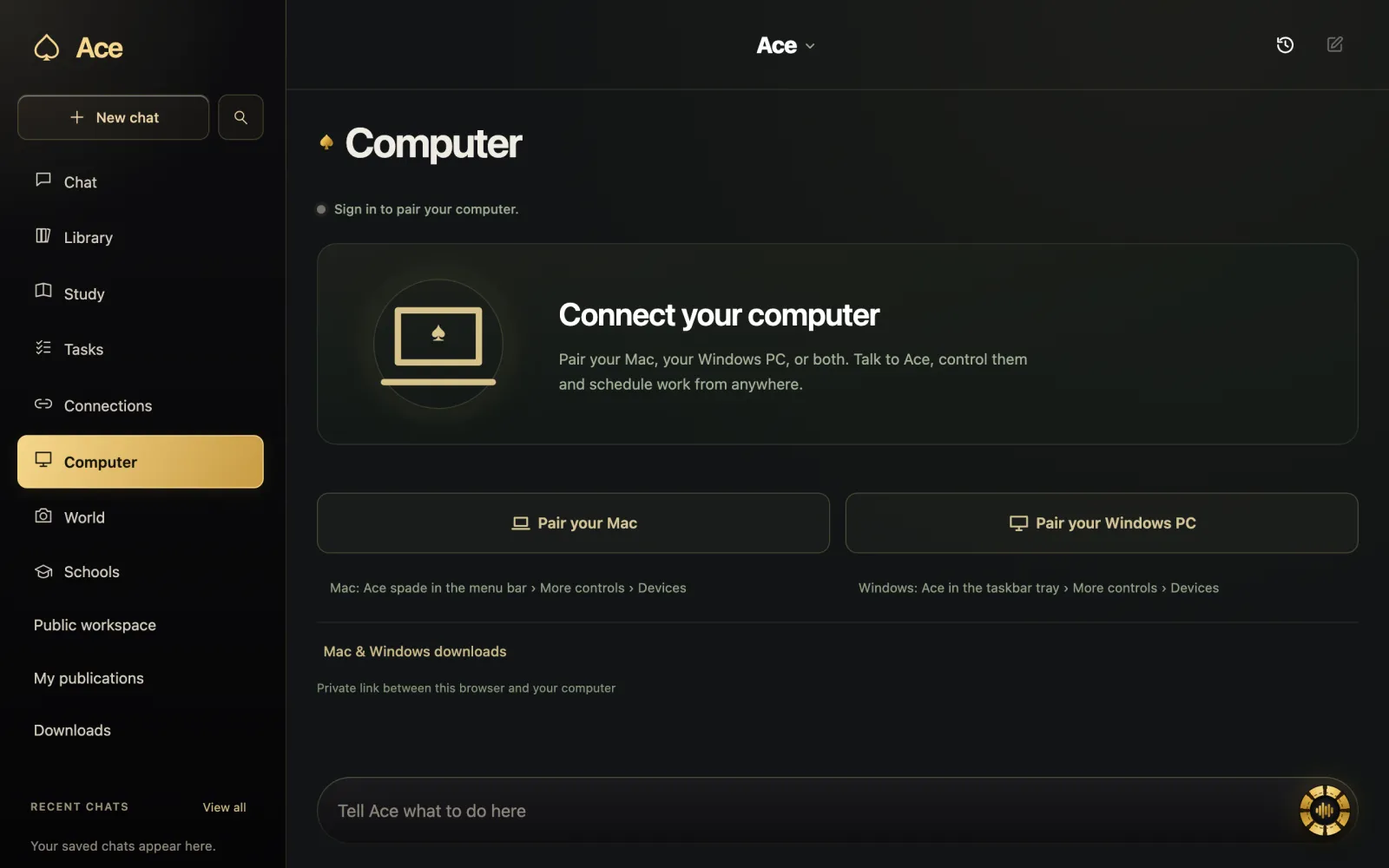
Repeat the download from your account on each PC. The account and the balance are shared, so credits you buy on one computer are available on the others, on your phone and in Ace web chat.
More from Ace
The full overview of Ace for Windows is on tryacee.com/windows-ai-assistant.
Also asked
Can I download Ace without creating an account?
No. Ace asks you to create an account or sign in before it offers the Windows download. The free account needs no card.
Where do I find the SHA-256 for the installer?
On Ace’s public release record at tryacee.com/changelog, next to the build you downloaded.
Is there one installer for Windows 11 and Windows 10?
Yes. The release record lists a single Windows download, and Ace’s platform list includes both Windows 11 and Windows 10.
Windows says it protected my PC. Is the installer unsafe?
Not necessarily: SmartScreen warns about files without an established download history. Check that the file came from your Ace account and that its SHA-256 matches the release record before you run it.
What do I need before I install Ace on Windows?
Four things: a PC running Windows 11 or Windows 10 that is connected to the internet, the Google account or email address you want to sign in with, a microphone if you want to talk to Ace (typing works without one), and, if the PC belongs to your employer or school, its approval to install new apps.
Do I have to grant every permission during Ace’s Setup?
No. You don’t have to grant everything at once. The microphone is needed only for talking, and screen access only for questions about what is on your screen. Files and app control are for tasks where Ace opens an app or works on a file for you, so they can wait until you have such a task. Each one can be turned off later.
Which account do I approve when Ace’s Setup opens?
The same Ace account you signed in with on the website. Use the same Google account or email address, so the app shows the balance you expect. After that, choose your permissions: Windows shows its own prompt for each one.
What happens if Smart App Control blocks the Ace installer?
The decision belongs to whoever looks after the PC. On Windows 11 PCs with Smart App Control turned on, Windows blocks malicious, potentially unwanted and unknown unsigned apps, and Microsoft offers no per-app exception. On a PC your organization manages, ask the IT team to approve the app rather than looking for a way around a block.
How do I install Ace on a second PC?
Repeat the download from your account on each PC, then run the installer and approve the same Ace account in Setup. The account and the balance are shared, so credits you buy on one computer are available on the others, on your phone and in Ace web chat.
What should I ask Ace first after installing it?
Pick something real that is already on screen, so you can judge the answer. Hold Ctrl + Shift and try “What does this error mean, and what do I do next?” or “Explain this spreadsheet formula in plain English.” Then follow up in a few words, such as “shorter” or “why?”, instead of starting over.
Do I need to create a password to sign in to Ace?
No. Ace never asks you to create a password. You choose Continue with Google, or enter your email address and open the sign-in link Ace sends. The link expires after 15 minutes; if it hasn’t arrived, check your spam folder. Whenever you sign in again you can request a fresh email link or use Google.
More questions
- The Ace AI app for PC
- Does the Ace app run on Windows 10?
- What the Ace app can see and hear on Windows
- How to check the SHA-256 of the Ace download on Windows
- Uninstalling Ace from Windows
- Ace not working on Windows? Fixes for the microphone, hotkey, screen and sign-in
- AI for Windows App: overview
- All AI for Windows App guides
Deal yourself in.
More about Ace
Sources
- Smart App Control Frequently Asked Questions | Microsoft Support, Microsoft Support. Checked November 14, 2026.
- Microsoft Defender SmartScreen overview | Microsoft Learn, Microsoft Learn. Checked November 14, 2026.